OmniDiskSweeper Review: My Real-World Review + Best Alternatives
I have an older Mac that’s been with me for years. Its hardware is limited, and the small amount of storage often puts me in a tight spot. While researching system cleanup tools like DaisyDisk and CleanMyMac X, I noticed many people in online communities also recommended a free tool—OmniDiskSweeper. Out of curiosity (and a strong desire to finally get my storage under control), I downloaded it and tried it myself.
 OmniDiskSweeper is installed on my MacBook
In the rest of this article, I’ll share my real-world experience with OmniDiskSweeper and, hopefully, provide some useful context if you’re considering it.
Core Experience with OmniDiskSweeper
As someone with an older Mac, I’m most wary of “heavy” apps. They might help you clean up, but they can also eat up precious system resources and slow your Mac down. That’s why I tend to prefer lightweight Mac apps.
If you’re like me—running an older Mac and you understand how macOS works—I think the free OmniDiskSweeper can be a solid choice. But if you don’t really understand the macOS file system or what different folders actually contain, I’d recommend that you don’t use it. Here’s why:
Pros of OmniDiskSweeper
1. Lightning-fast scan speed
My old Mac has a lot of data on its drive, but OmniDiskSweeper’s scan is surprisingly fast. In my testing, the first full scan of the main drive took under 30 seconds, and CPU usage never went above 30% (under the same conditions, DaisyDisk peaked around 75%, and CleanMyMac was roughly 50%). There are no fancy animations and no background jobs—it focuses on one thing: quickly reading file sizes and listing folders and files. User feedback online generally backs this up as well.
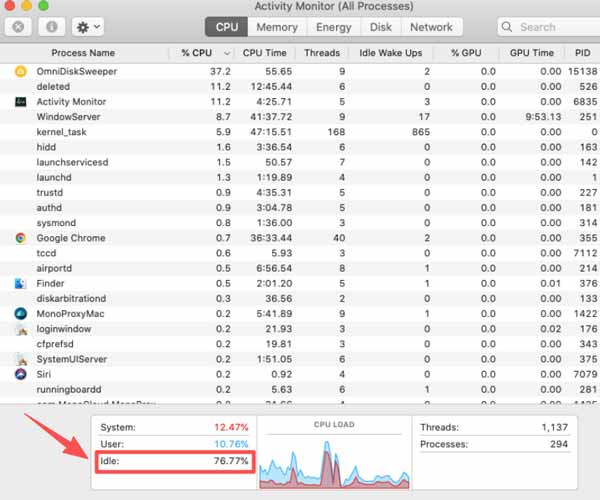 CPU percentage remaining (76%) while using OminiDiskSweeper
Compared with many paid or “all-in-one” tools, OmniDiskSweeper’s plug-and-play, run-and-quit lightweight nature is especially important for older Macs. It uses very little CPU and memory while running, and when you’re done, you close it—no background leftovers. In my experience, it didn’t noticeably stress my Mac’s CPU or memory.
2. A clean, list-based view
OmniDiskSweeper chooses the simplest possible presentation: a list. Instead of using charts or visual maps like DaisyDisk, it displays results in a column view that feels similar to macOS Finder.
The biggest advantage is that after the scan, it sorts files and folders strictly from largest to smallest. That design makes it easy to spot what’s taking up the most space and act quickly. Using this approach, I cleaned up a few old system update installers I downloaded years ago, large simulator caches taken up by Xcode, and huge log files left behind by certain apps.
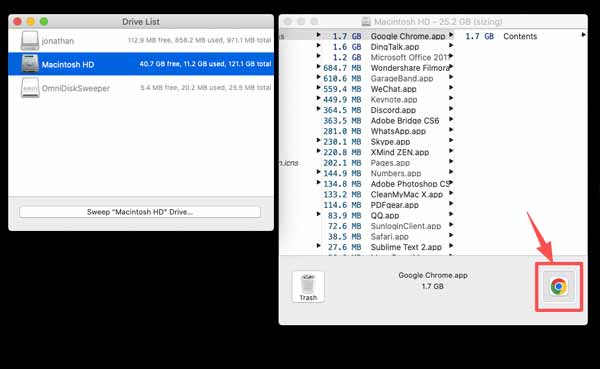 OmniDiskSweeper list view
3. Full control and precise targeting
OmniDiskSweeper is a pure diagnostic tool: it shows you the data, but it won’t automatically delete anything. It clearly lists paths and sizes and even lets you see certain files that macOS hides by default. It also needs your permission to access what it needs. In the end, you still have to click the file’s actual folder to open it before you delete it. As the “admin” of my own system, I keep final control over every cleanup action.
4. Truly free and minimal
OmniDiskSweeper has no ads and no paywall. It’s a refreshingly straightforward experience. For older Macs, its lightweight approach matters: it doesn’t run in the background, it doesn’t monitor your system, and it doesn’t add any extra overhead. It exists for one purpose—launch when you need it, scan, clean, and close.
5. Other notes
In terms of update pace, Omni Group tends to keep up with new macOS releases fairly well. The company has clearly stated that the current version of OmniDiskSweeper is compatible with macOS 26 (Tahoe). When it comes to downloads, the website defaults to the newest macOS build, but it also keeps older installers available for people still running older macOS versions.
Cons of OmniDiskSweeper
Even though OmniDiskSweeper has clear strengths, it also has limitations and some user risks. If you’re on an older Mac, you should understand these before using it.
1. Potential risk of accidental deletion
OmniDiskSweeper’s transparency is a double-edged sword. It can show system files and folders that macOS usually hides. While that gives you powerful access for deep cleanup, if you don’t have basic system knowledge, you could accidentally delete critical macOS files, causing crashes or even preventing the system from booting.
I’ve also seen people online share experiences of reinstalling macOS after deleting the wrong thing. Before using OmniDiskSweeper, I strongly recommend backing up your data and being extremely cautious.
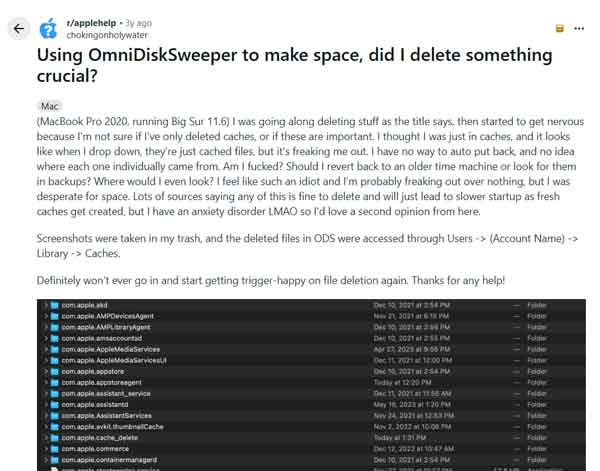 User story about accidental deletion due to misunderstanding of files
2. Limitations in features and information
OmniDiskSweeper is essentially “just a list.” It lacks the fully visual, graphical analysis that tools like DaisyDisk provide, and it also lacks CleanMyMac X’s multi-function, one-click cleanup approach. When dealing with complex “System Data” issues, OmniDiskSweeper’s plain list may not fully capture certain categories, such as virtual memory or local Time Machine snapshots. That can lead to results that don’t perfectly match what macOS’s built-in Storage Management shows under “System Data.”
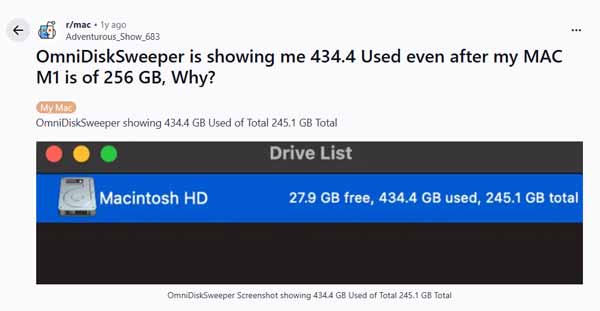 ODS shows a mismatch between the used space and the total storage – link
Alternatives to OmniDiskSweeper
To clear space on my older Mac, I’ve tried a few different cleanup tools. If you’re deciding between options, here’s a quick comparison of representative tools to help you choose based on your needs:
- CleanMyMac X: Broad feature coverage, automated one-click cleanup, plus system health monitoring and maintenance. Best for people who want an automated cleanup and ongoing maintenance workflow—especially new Mac owners or beginners who aren’t familiar with system management. Learn more

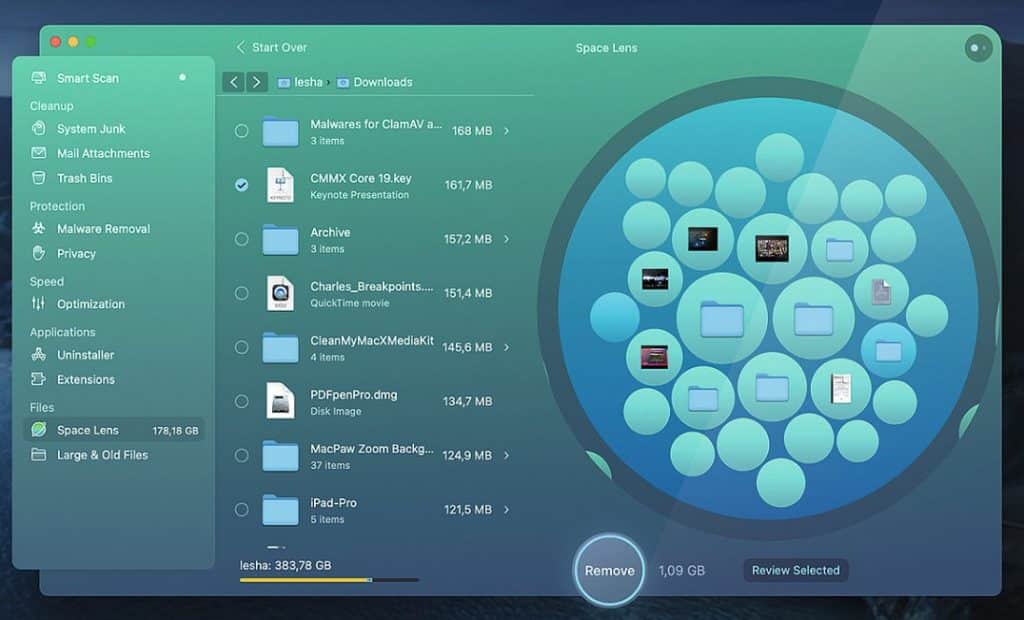 CleanMyMac X Design
 - DaisyDisk: A beautiful UI with a highly visual “sunburst” disk map for deep space analysis. Best for power users who care about interface polish and want an intuitive visual understanding of disk usage. Learn more
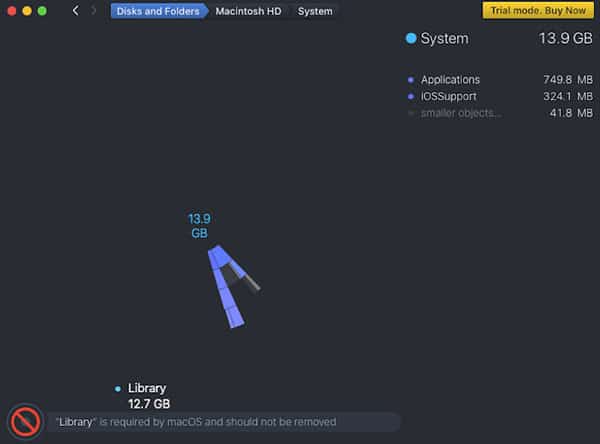 DaisyDisk displays a warning message when trying to delete system files
 - GrandPerspective (free): If you simply want to locate large files quickly and you don’t mind a basic UI or slower scanning, try GrandPerspective. It’s a classic open-source tool that uses a treemap layout to visualize your file structure. It’s stable and lightweight, but the design looks dated, and scans can take longer. Learn more
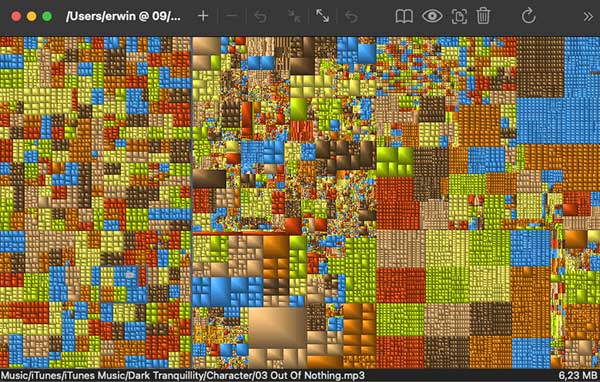 GrandPerspective
Conclusion
OmniDiskSweeper was an unexpectedly pleasant discovery from recommendations I saw online. As a free tool, it can quickly find and pinpoint large files and present them in a directory-style list. But it’s not perfect—it has a relatively narrow feature set. And when using it, you should be very careful to avoid accidentally deleting important Mac data.
